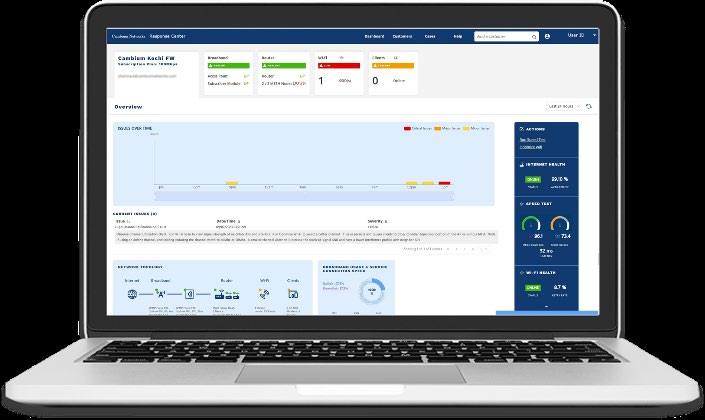
Subscriber and ServiceWorkflows
cnMaestro subscriber workflowsallow the provider to create a service and link it to a person and a site. Multiple
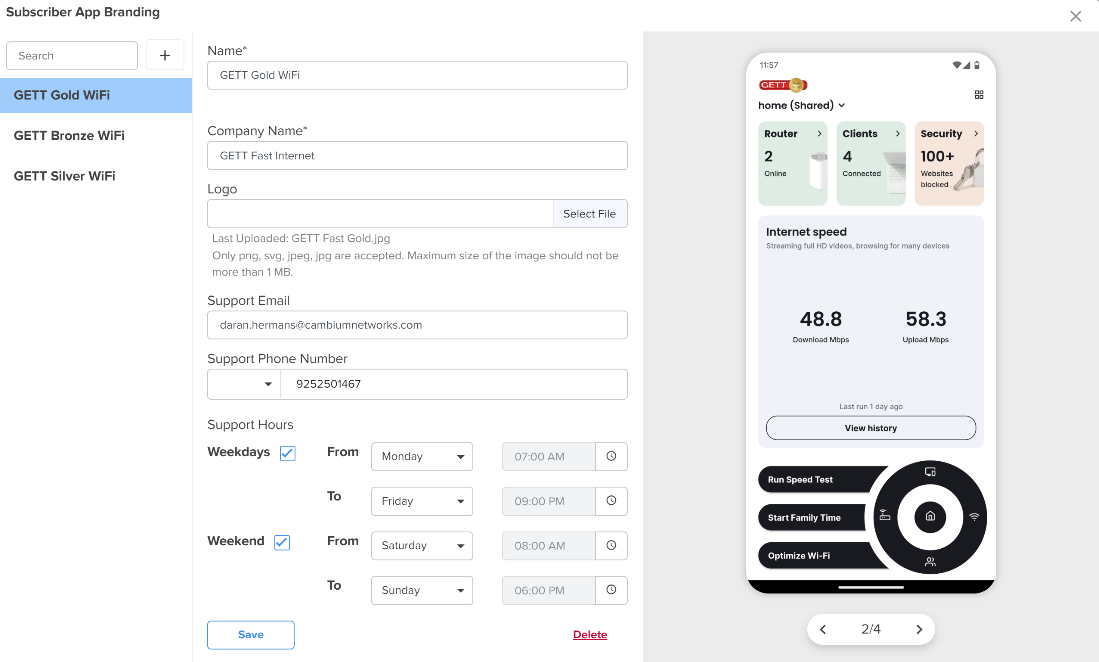
services can be created incnMaestro with each service including custom logos, service names, support contacts, and
support hours. Use the servicetool to create multiple levels of service with unique branding and information.
Assign a service to a subscriberand the subscriber site. Once linked, an invitation to manage the network will be
automatically generated andsent to the subscriber email address.
Create a SubscriberProfile
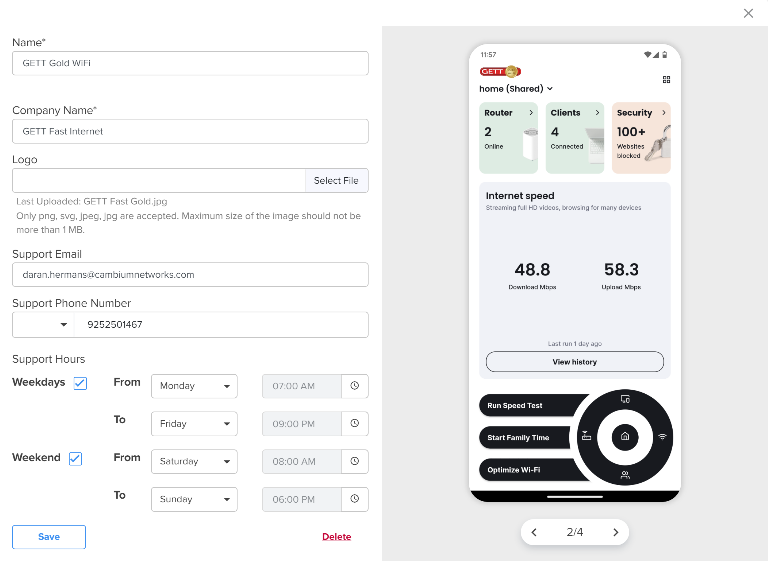
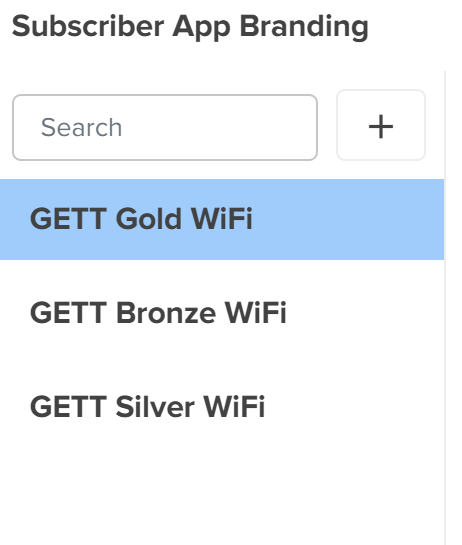
Edit Subscriber AppBranding Create customized App logos that represent each level of service subscribed. In this example, the service provider (GETT) has a gold, silver, and bronze level. Update customer support hours to reflect the purchased service level. RV22 Wi-Fi 6 Home Mesh Router
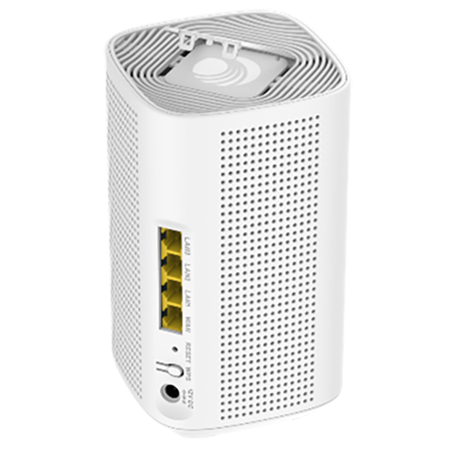
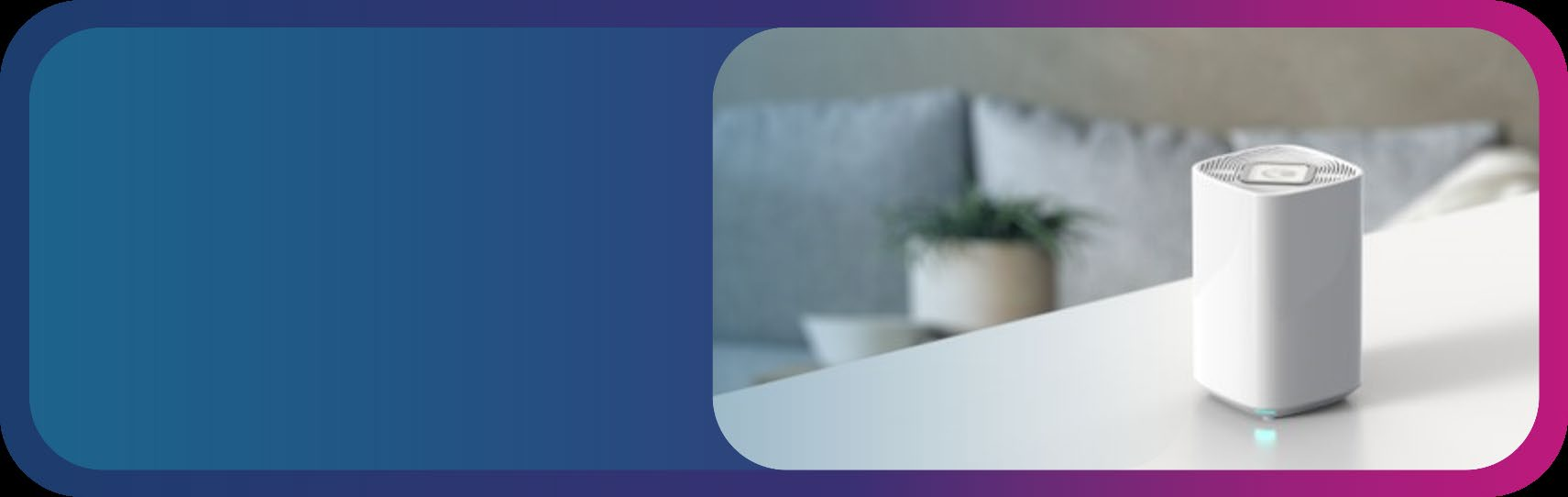
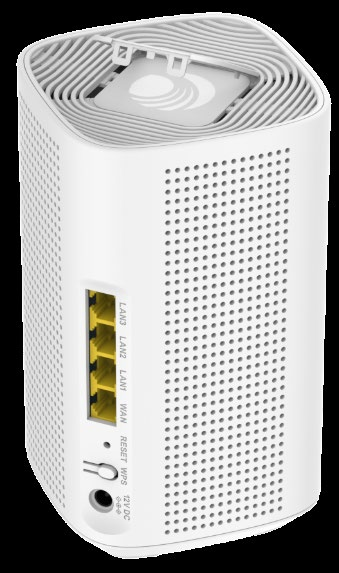
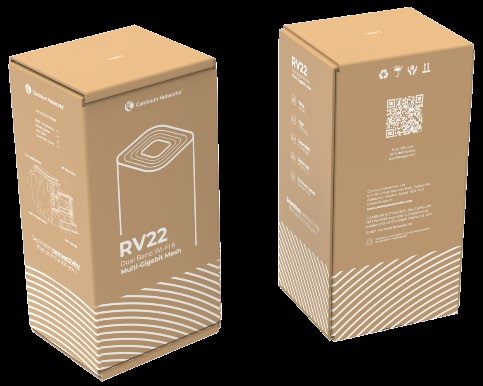
Start with a single managedWi-Fi 6 RV22 Home Mesh Router and add mesh nodes, if needed, to cover
large homes, difficult constructiontypes, and/or RF blocking construction materials, such as brick or
cnMaestro cloud managementsystem informs the mesh router to look for mesh nodes. Discovery and setup
are automatic. A blinkingLED on the mesh node guides the subscriber to the optimal site location for the
mesh node—not too closeand not too far from the mesh router. The result is multi-gigabit, symmetrical mesh
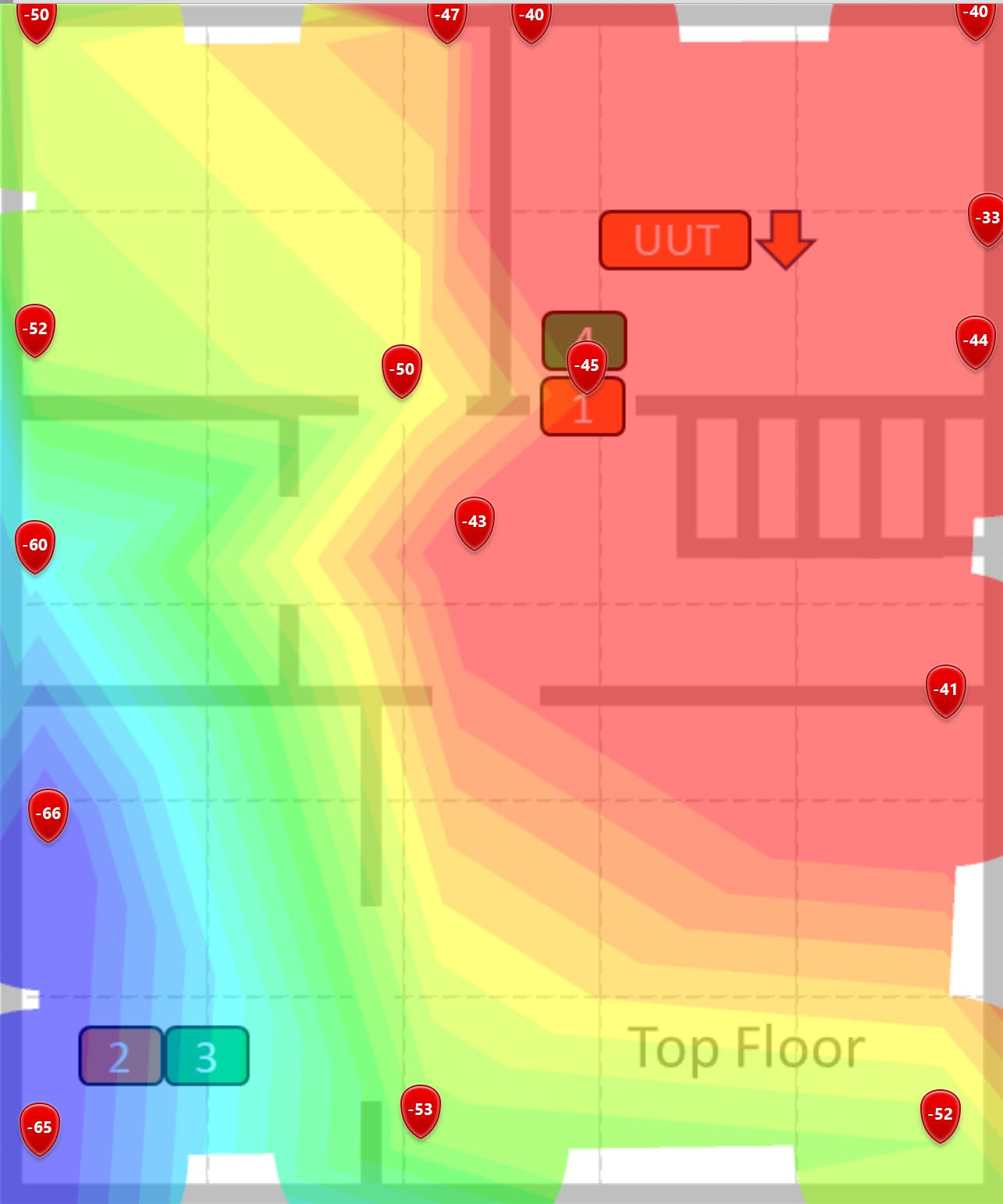
links delivering a greatexperience throughout the home. No Mesh, Just One Great AP ISP Broadband 2.4 Gbps Wireless Mesh Covers >2,000 ft2 (186 m2) ISP Broadband ISP Broadband Gigabit Wired Mesh Star Wi-Fi Mesh ISP Broadband 2.4 Gbps Wireless Mesh RV22 Wi-Fi 6 Home Mesh Router
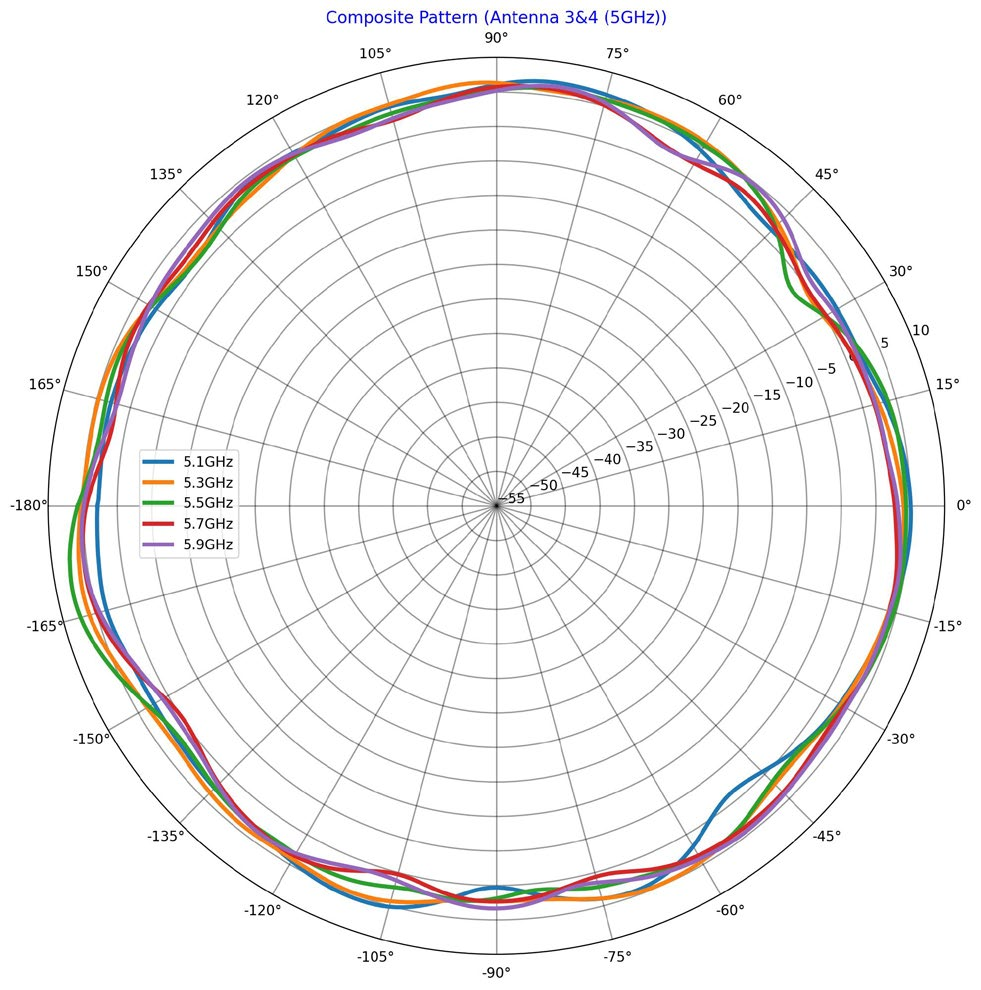
High-Power Radio DeliversPerformance. Optimized Wireless Makes It Work.
Whether using a singleRV22 to cover a small home or apartment or using RV22 mesh nodes for a large
home, it starts with a greatRF signal.
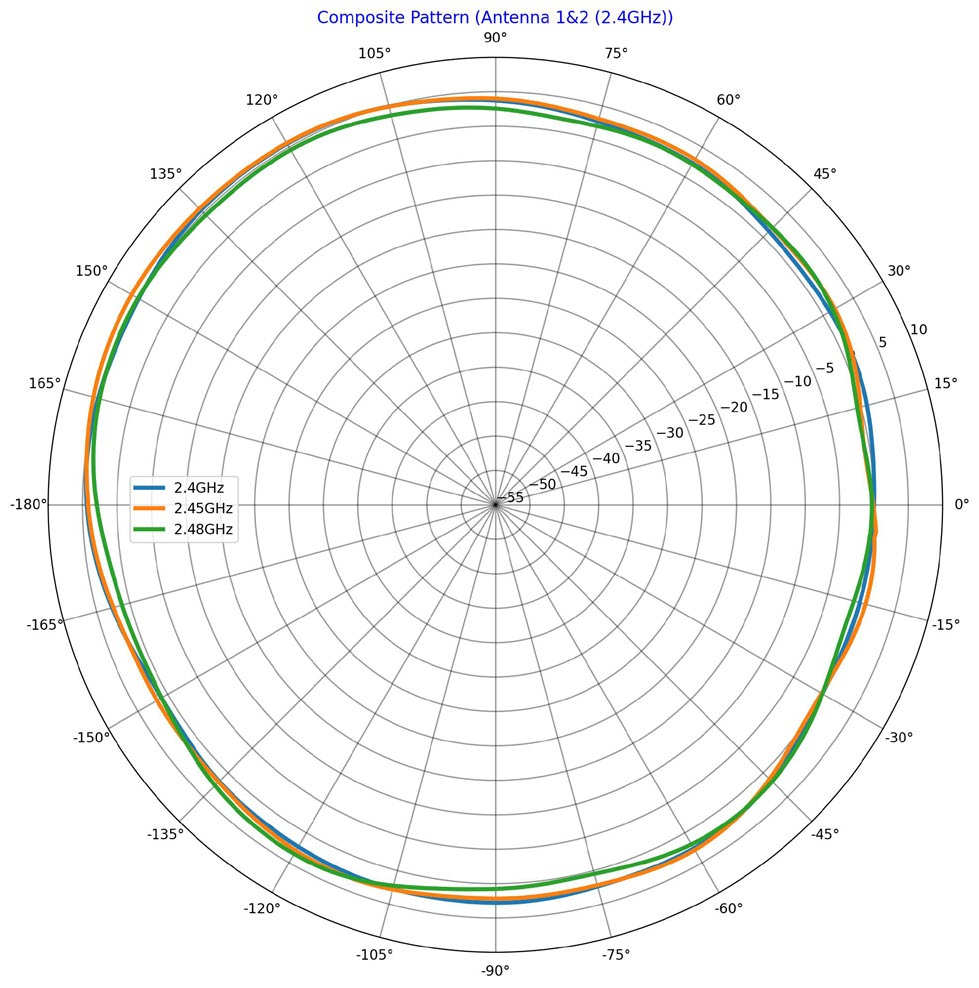
High-gain radios pairedwith high-efficiency antennas provide outstanding client and mesh connections.
Mesh-to-mesh links rangefrom symmetrical 1.2 Gbps to 2.4 Gbps. A third transmit-and-receive antenna
provides transmit multipathand receive MRC for a more reliable Wi-Fi connection. RV22, 5 GHz 3x3:2,
Some of the fixed wirelessbroadband from Cambium Networks 2.4 GHz 2x2:2 Wi-
runs in the same 5 GHzband as Wi-Fi within the home. Fi 6 DN 920 Mbps
Cambium’s fixed wirelesssubscriber modules are designed to �2
avoid interference fromthe home Wi-Fi. But home Wi-Fi must ≈900 b
remain standards-basedto support the varied consumer
devices that will connect.cnMaestro cloud management system
coordinates the frequencyselection between the RV22 Home
Mesh Router and the roof-mountedsubscriber module. Monitor
the frequency selectionand interference using the Response DN 716 Mbps
Upon bootup and any timethe Optimize Wi-Fi command is
executed, the RV22 scanschannels, measures utilization, and
decides whether a channelchange is required. Run Optimize
Wi-Fi from the ResponseCenter* or Subscriber App.
Great Wi-Fi signal strengthand low noise creates a high SNR for each subscriber client device. Easily
support multiple HD videostreams + web browsing + security cameras on the same system. *Planned release: June 2024 RV22 Wi-Fi 6 Home Mesh Router
Easily Self-Brand theRV22
RV22 and the SubscriberApp can be branded to match the service provider name, contact information, and brand.
Once the subscriber acceptsthe email invitation to join your network, the Subscriber App will be updated with your
service provider details fromthe cnMaestro workflow.
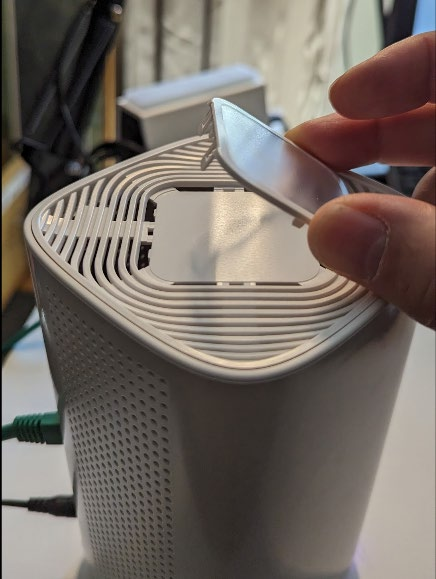
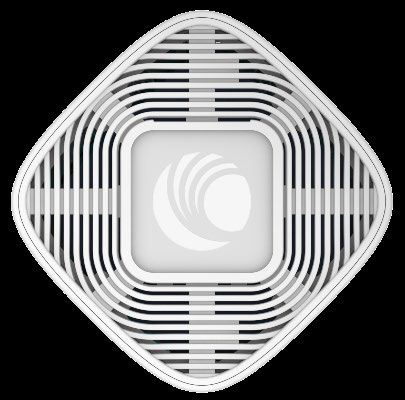
Add Your Brand to the RV22AP
• Use a flat-head screwdriverto remove the clear plastic window.
• Slide your printedpaper under the window and snap the plastic window mm2 in2).
The printedpaper should be 44 (1.75
Add Your Brand to the SubscriberApp
cnMaestro includes a SubscriberWorkflow to add your company name, contact
information, and logo. TheSubscriber Workflow associates broadband services
Fixed wireless broadbandtemplate
Create Multiple BrandedTemplates
Create one or multiple Apptemplates to differentiate the
service level on the App.Include the following information:
Support contact hoursof operation, email address, RV22 Wi-Fi 6 Home Mesh Router
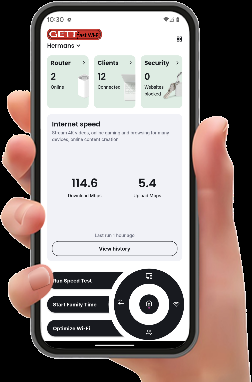
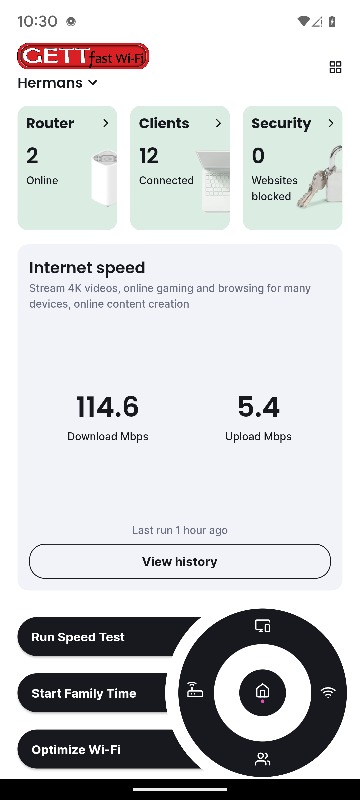
The Subscriber App is designedto give your subscribers easy access to manage their home network. Using the App,
the subscriber can changethe network name, create a guest Wi-Fi, and manage internet access for devices within the
The dashboard displays keyperformance indicators (KPI) along the top, including recent
speed test results and a 24-hourdata graph. App navigation is at the bottom, featuring
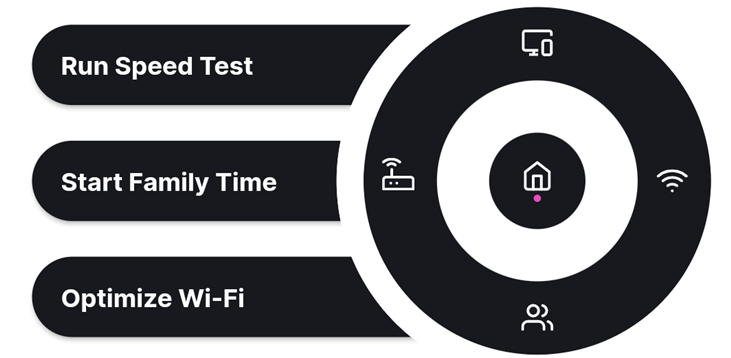
three tools that most subscriberswill commonly use.
Selecting this option will initiatea Subscriber App-to-internet test, followed by a router-to-
internet test. The results areshown on the app and retained on the dashboard.
This tool is a quick and effectiveway to pause internet use for a profile of devices.
Subscribers can use this toolto quickly pause the internet, for example, at dinner time.
Optimize Wi-Fi can be runby the subscriber at any time, or it can be initiated by the support technician from the View all connected clients Configure Wi-Fi, create a guest network. Use this tool to see your Wi-Fi password in a QR code or plain text. View and edit profiles for content filtering and scheduled on/off time. *Planned release: June 2024 RV22 Wi-Fi 6 Home Mesh Router
Subscriber App ContentControl, Profiles
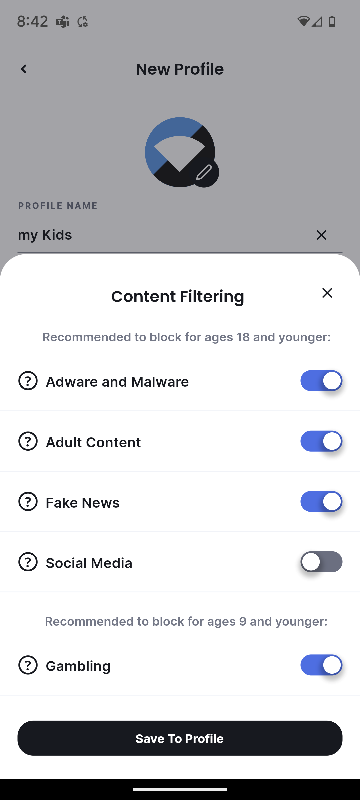
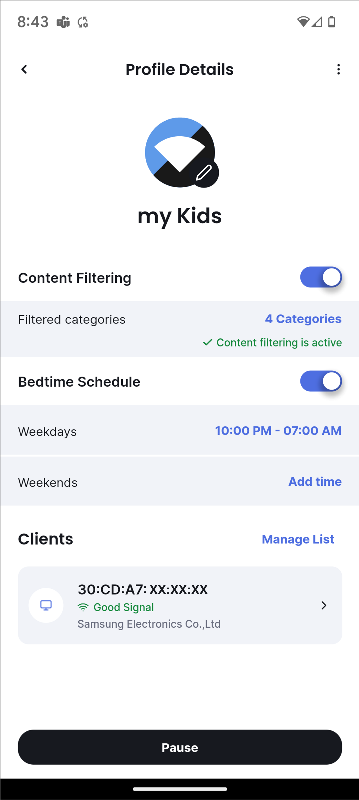
With a few clicks, subscriberscan collect devices into profiles and assign policies to those profiles.
A profile is a group of clientdevices. Common groups of devices include Adults, Kids, and IOT. Subscribers should put
all the IOT devices into thesame profile so that, for example, the thermostat and doorbell do not disable when the
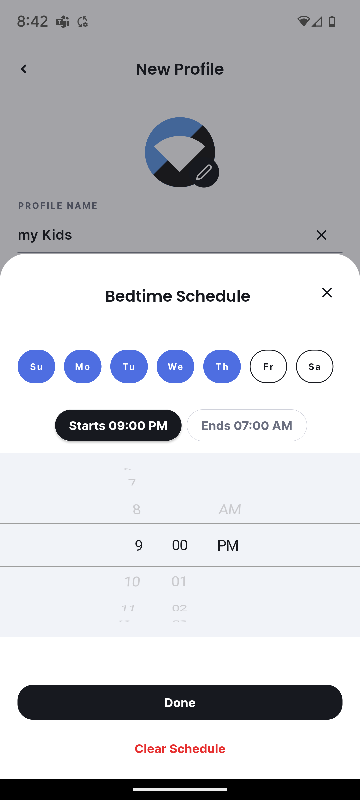
kids go to bed. They canalso configure a web content filter and/or set a weekly bedtime schedule.
The choice to enable a contentfilter is entirely at the discretion of the Subscriber. cnMaestro will never collect data or
know anything about thisselection. Once enabled, subscribers can monitor blocked events on the dashboard security
widget. The web contentfilter cannot be enabled, disabled, or monitored from cnMaestro.
Subscribers can use this toolto set up a weekly schedule for internet access. Once applied to the profile, devices
within that profile will be allowedto access the internet during approved hours. Click the desired category for Select days and start/stop content filtering. Consult the times for scheduled Wi-Fi FAQ for a brief description. access. Give the profile a meaningful name. Enable content filter and schedule. Add devices to the profile. RV22 Wi-Fi 6 Home Mesh Router
The RV22 Wi-Fi 6 Home MeshRouter requires a device subscription. For additional flexibility, the RV22 device
subscription can be addedeither to a cnMaestro Essentials account where other devices may be managed without a
subscription or a cnMaestroaccount where other devices are managed with a cnMaestro X subscription.
cnMaestro EssentialsRV22 Device Subscription Includes
Service providers that managea network using cnMaestro • Claim the RV22
Essentials can add the RV22to the account along with the • Manage the AP with AP groups and device override
device subscription. Theywill not need to add subscriptions
to all the other devices in theaccount. • Subscriber workflow
Offered at no cost to serviceproviders • Response Center* help desk and analytics
Scales up to 10,000 manageddevices, while offering a • Case management
single pane-of-glass managementview of the entire • Automatic RF management